
When practicing, you often start at a comfortable tempo to lock in the stickings and the groove, then gradually increase.
However, every acceleration requires stopping, adjusting BPM, and restarting, which can interrupt your flow right when you’re getting into it XD
H.G Drums Metronome's “Speed Progression Training” lets you set how often speed increases, how much BPM to add each time, and what speed to aim for this time.
Today, we’ll start with a small, familiar single-stroke and see how to set it up, then observe whether the acceleration disrupts the existing motion.
1) Find Speed Progression Training
Open H.G Drums Drummer Metronome, select “Training Mode,” locate “Speed Progression Training,” then go to “Settings.”
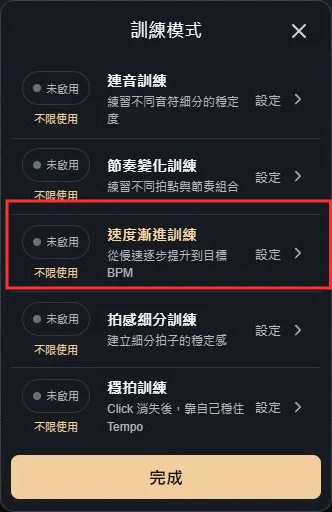
There are four fields here:
- Acceleration interval (minutes):How many minutes between speed increases.
- Each time, how many BPM to add:How much to increase each acceleration.
- Starting BPM:What speed to start from this time.
- Target BPM:What speed to accelerate to this time.
Target BPM must be higher than starting BPM. First pick a range you can reliably complete today; don’t set a target that makes you panic (sweat~).
2) Try a round at 60 to 70 BPM
Here’s a sample practice setting you can adjust to your situation:
- Acceleration interval:1 minute
- Each increase by:2 BPM
- Starting speed:60 BPM
- Target speed:70 BPM
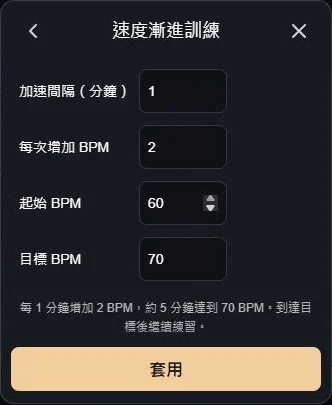
This setup starts at 60 BPM and increases by 2 BPM every minute, progressing to 62, 64, 66, 68, 70 BPM in order.
Continue for about five minutes to reach 70 BPM. Once you hit the target, the metronome will stay at the target speed and keep playing; stop when you’re done.
These numbers are just today’s practice example. In your actual screen, first confirm the four fields, then set according to the speed you can manage right now.
3) After applying, enable and play
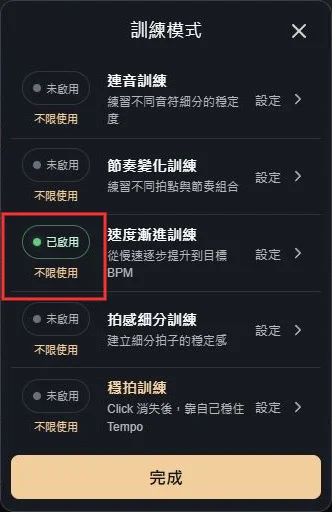
After filling the four fields, hit “Apply,” go back to the Training Mode list, and confirm that “Speed Progression Training” shows “Enabled.”
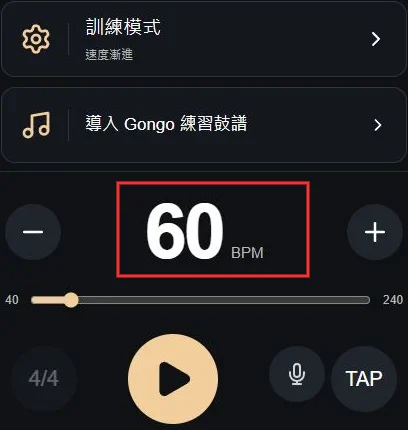
Back on the main screen, first confirm that the current display shows 60 BPM and that the training mode is “Speed Progression,” then press the Play button below.
During playback, you can watch the “Next acceleration” countdown to know when speed will change next; when you reach the target, it will show “Target reached” and the target BPM.

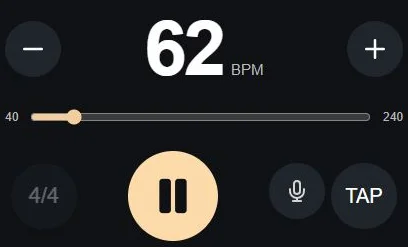
The available repeats and privileges on screen vary by account status; if you see login, trial count, or unlock prompts, follow the on-screen prompts.
4) If speed changes, keep the practice content the same
For first-time use, you can start by hitting a pad or a small drum in one position.
In 4/4 time, practice eighth-note single-stroke with two hits per beat:
Count: 1 & 2 & 3 & 4 &
Strokes: R L R L R L R L
First, use a one-stroke-per-beat tempo so numbers align with the metronome, placing & halfway between beats. After speed increases, continue with two hits per beat and alternating hands.
Finish a line for a few rounds, and watch for these issues during acceleration:
- Left and right hand volume start to diverge significantly.
- At some point, you push forward too hard, making the subdivision uneven.
- Grip tightens as you chase the next beat.
This time,固定 the sticking and practice position; you’ll more easily hear which area becomes unstable as tempo increases.
5) When you’re falling behind, adjust the acceleration method for this run
If 60 BPM feels smooth but you stall at 66 BPM, stop playback and return to a controllable speed.
Then adjust just one field based on the situation.
Need a bit more familiar time:Extend the acceleration interval from one minute to two minutes to drill at the same speed longer.
If you keep getting chaotic after each increase:Change the increment from 2 BPM to 1 BPM to try smaller tempo changes.
The target is too far:Lower the target BPM to keep a section where you can clearly finish the exercise.
Before changing settings, stop playback. After adjusting, re-apply, confirm enabled status and starting speed, then press Play to start again.
You don’t have to change all three places at once. Adjust one item at a time to better see which setting suits you currently.
Lastly, finish each speed clearly
After practice, ask yourself:
- At the starting speed, can you relax and finish evenly?
- After acceleration, are the left-right volumes and note spacing still even?
- When you reach the target speed, can you still play the full phrase clearly?
If a certain speed keeps showing the same issue, stay there next time, practice several rounds at that fixed speed, then try increasing again.
Choose a small familiar section first, set a starting point you can master. Let the metronome handle the speed changes, and keep your attention on the sound of each hit! 🥁