
Hello everyone, I’m H.G Drums! 🥁
When you play along with a metronome, the beats seem to align,
but after playing for a while, you suddenly don’t know whether you’re at ‘1’ or ‘3’?
The round metronome lights at the top aren’t just for looking at.
Click once to designate a single accent, so you can identify positions by the strength of the beat!
1. When is this feature useful?
If you’re new to counting, it’s easy to forget the bar start,
or you want to try moving the accent to a different beat, you can start with this setting.
This sets the metronome accent, it doesn’t change BPM or time signature,
nor does it judge whether you’re playing correctly; you still need to listen and check your own counting and hits.
2. Prepare with BPM 60, 4/4, and quarter notes
Firstopen the H.G Drums Metronomeand set tempo to BPM 60, time signature 4/4.
In the “Basic Functions,” use quarter notes, so each beat has only one hit to make it easier to identify.
This article uses a standard metronome without loaded drum notation, and training mode is not activated.
If GONGO drum scores are currently loaded, press “Exit” first, then follow this workflow.
Look at the four accent lights on the top of the main screen; from left to right they are beats 1–4.
Accent can be set directly by tapping the light; no other settings panel is needed.
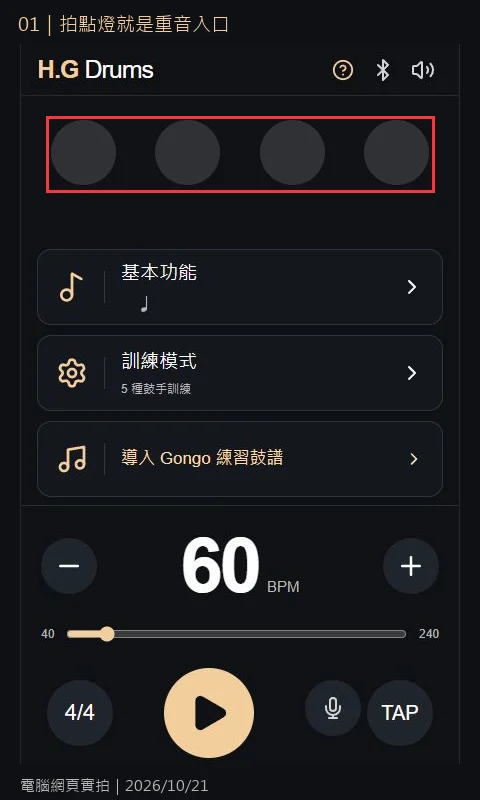
3. Tap beat 1 to mark the bar start
Tap the leftmost beat 1 light.
When a gold “>” appears inside the light, it means beat 1 is set as the sole accent.
This setting takes effect immediately; you don’t need to press “Apply” or “Done.”
The figure is still in standby mode; once you’re ready, press the Play button below to start.
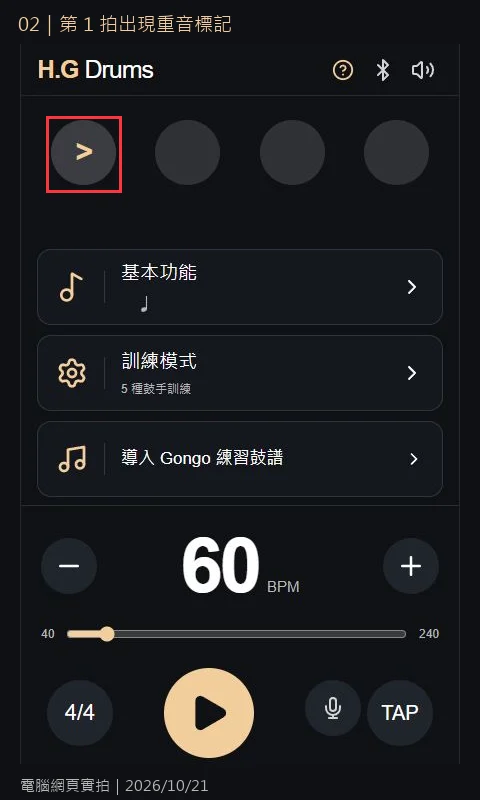
With this quarter-note setting, all four beats will still sound,
but the designated beat will be stronger while the others are lighter; this does not mute the other three beats.
4. To change the position, simply tap another accent light
For example, tapping beat 3 will move the gold “>” from beat 1 to beat 3.
This is selecting the “sole accent,” it will not leave beats 1 and 3 both marked.
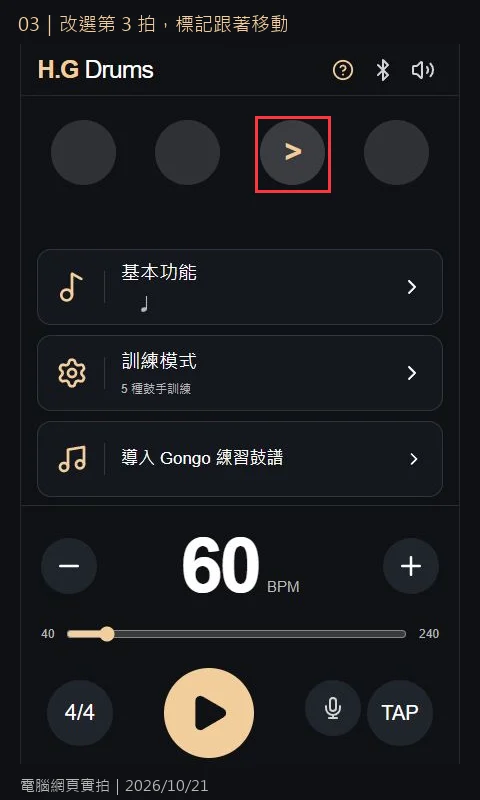
Note that moving the accent to beat 3 does not mean beat 3 becomes the new beat 1.
The bar numbering remains 1, 2, 3, 4; don’t start counting from 1 again just because the accent moved XD
5. Tap the selected light again to restore normal accent
If beat 3 is currently selected, tapping the same light again,
the gold “>” will disappear, and a message says “Normal accent restored.”
This cancels the manually set sole accent, returning to the standard accent rule.
It does not stop playback, nor mute all sounds.
6. Practice four bars with single strokes first
Prepare drumsticks and a practice pad, or use a snare drum as well.
Return to beat 1 with the sole accent, BPM 60, 4/4, quarter notes.
- Press Play and listen to the four-beat loop clearly, counting “1, 2, 3, 4” with your mouth.
- Alternate left and right hands, hitting once on each beat; keep your hits at a steady volume.
- Play four bars in a row, listening for the accent on beat 1 to confirm you’re not counting one beat too many or too few.
- After you’re comfortable, pause and move the accent to beat 3, then try again; counting still goes 1 to 4.
Starting out, practicing only beat 1 is perfectly fine;
no need to rush moving the accent around everywhere—just find where each bar comes back 😆
The goal of this exercise is to identify the beat points, not to aggressively hit every strong beat.
If you want to practice your own accent control later, you can schedule it separately.
Common questions
Why is there no sound after tapping an accent light?
Setting the accent is not the same as starting playback. Choose the setting while idle, then press Play below.
Can I set both 1 and 3 at the same time?
This article demonstrates the “sole accent” setup. Choosing another beat cancels the previous one.
Does restoring normal accent mean every beat is exactly the same?
Not exactly. It means canceling the manually specified sole accent and returning to the general accent rule; don’t interpret it as total muting.
Any notes for mobile, tablet, or members?
The three images are actual desktop captures cropped and enlarged; for mobile and tablet, look for the accent lights at the top of the main screen.
This article only demonstrates a standard 4/4 metronome, not member drum scores or other training modes; other features depend on your current permissions.
Do I need a microphone?
No. This only sets the metronome sound strength; it does not record, tempo check, or rate your playing.
Keep the page open during practice; if you switch to another app or lock the screen, re-check the status on the page before continuing.
👉 open the H.G Drums Metronome
👉 Check the site for the accent light and basic operation guide
First count the numbers “1, 2, 3, 4” clearly, then gradually add variations.
Today, let’s go GONGO together too! 🥁