
Hello everyone, I’m H.G Drums! 🥁
When practicing a groove, besides speed and staying in tempo,
sometimes just looking at the screen makes the notes and lines feel crowded, and the eyes start to race XD
This is the moment to first adjust how the drum score is displayed.
This time we’ll look at the style settings in the “Drum Score Practice Mode,” switch between staff notation and tablature, and try different color schemes.
1. First, choose a song that has Drum Score Practice Mode
This time we’ll use Jay Chou’s “Affixation” as the demo.
Firstopen the Drum Score Practice Mode for “Affixation,”wait for the score to load.
If you enter from the song page, click “Drum Score Practice Mode.”
This time let’s pause at 0:00, not in a rush to play, and focus on comparing the visuals.
2. Find “Style” on the toolbar
At the bottom of the score, find “Style,” and open the menu.
This is different from the “Control” button; this time we adjust the appearance of the score.
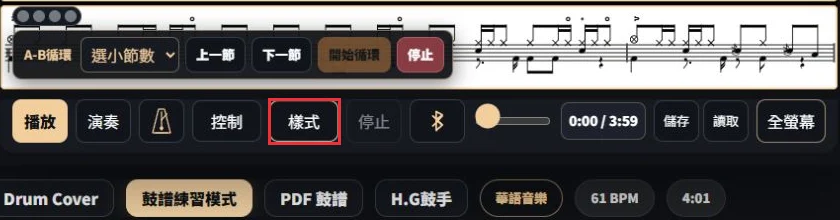
The menu is divided into three groups: Layout, Notes, Color.
This time keep the default score, only change the notes and color to better see the difference.
3. In the “Notes” row, switch to tablature
When currently on staff notation, you’ll see the usual five lines and note positions.
If you want to compare another display, click the adjacent “Tablature.”
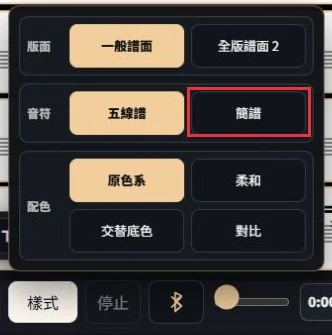
After choosing, click “Style” again to close the menu,
and see what the same drum scores look like just now.

This “Tablature” will omit the staff lines, keeping the drum-notes and rhythm.
It’s not turning the drum part into a melody 1, 2, 3, nor making the rhythm easier!
If you’re still familiarizing with the pieces’ positions, you can first use staff notation to locate positions, then switch to tablature for comparison. If you encounter something unclear, just switch back to confirm.
4. Then try the color contrast
Open the “Style” again, and in the bottom “Color” group,
you’ll see Original colors, Soft, Alternating background, and Contrast.
This time choose “Contrast.” The screen will switch to a dark score with light notes,
compared with the original color scheme above, see which suits your reading environment better.
Figure 4 | The actual display with “Tablature” paired with “Contrast”; the red box shows the chosen color scheme.
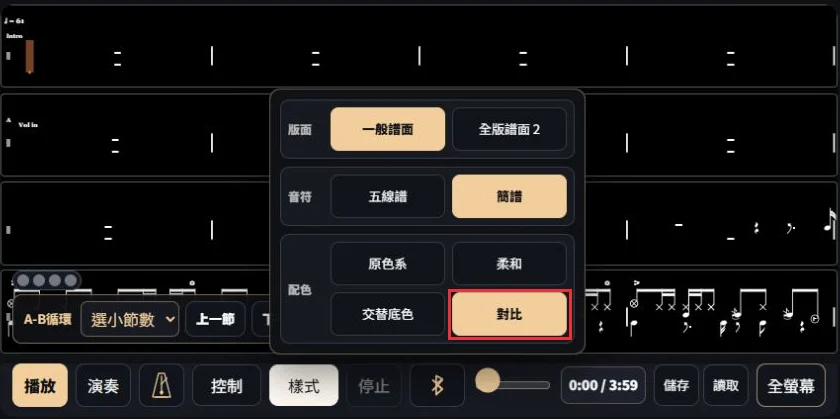
First fix the note style, only change colors; after picking colors, compare staff vs tablature.
If you want to return to the initial view,
select “Staff” + “Original” and keep the layout as “General score.”
5. Do a small sight-reading comparison on the same drum score
Choose a segment on screen with notes, no need to go through the whole piece.
This time you can compare the opening groove in “Affixation,” the line with drum hits.
Start with staff notation to locate the positions of the snare, kick, and cymbals.
- Switch to tablature, check the same segment’s notes and rests, ensure you know what to play.
- Keep tablature, switch to the contrast color, and compare the reading experience again.
- Choose a combination that’s clearly readable, count the measures slowly, then mimic the motion with your hands for that segment.
- The key is repeated comparison on the same segment,
don’t switch styles for every small section, or you’ll end up comparing two different difficulties 😆
Common questions
If you switch to tablature, will the song or rhythm change too?
This is a score display setting, not an arrangement of the song, and it won’t remove difficult notes.
When reading and practicing, still pay attention to the original note lengths, rests, and where the drum pieces sit.
If you choose Contrast, does that mean you won’t misread as much?
Different people, devices, and environments yield different experiences; there isn’t one single best option.
Use a single segment for comparison, and pick a method you can clearly recognize.
Will this also change PDFs?
This article covers the web page version of the Drum Score Practice Mode styling.
PDF is a separate entry point, and web toggle results do not imply PDF has been updated.
What preparation or membership is needed?
First choose a song that offers the Drum Score Practice Mode, and ensure the score can be opened normally.
The openness of the song or login prompts depend on the current screen; the style menu does not guarantee all songs are unlocked.
My phone screen is too cramped; how can I view it?
First confirm the button names, you can also try rotating the device, or use the toolbar’s full-screen option.
This capture is from the desktop version; we did not treat a computer screenshot as a mobile operation screen.
👉
Open the Drum Score Practice Mode for “Affixation” View the Drum Score style settings instructions
Open the Drum Score Practice Mode for “Affixation” Make sure you can read clearly, then slowly play out the rhythm on the score.
Today, let’s go GONGO too! 🥁"],
meta_title_en_friendly_not_needed?