
Hello everyone, I’m H.G Drums! 🥁
When the metronome clicks on every beat, keeping time with it feels smooth,
but what if it only clicks on the “and”? Can you still locate 1, 2, 3, 4 by ear?
This time with the half-beat sequencing in Rhythm Variation Training,
we’ll do a small exercise that only lights the off-beat, so ears and hands each stay in their places 😆
1. Prepare BPM 60, 4/4 time
Suitable for those who can count “1& 2& 3& 4&,”
want to practice recognizing the downbeat and the offbeat, or tend to shift when they hear a sound.
Prepare a pad or small drum,
firstopen the H.G Drums Metronomeand set BPM 60, 4/4 time.
If you currently have GONGO sheet music loaded, first press “Exit” to return to a regular metronome.
This article uses the five training options of a regular metronome, not the three in the drum notation.
Training features require a valid membership or trial rights.
If it shows “Trial” or locked, follow the on-screen prompts to log in or view membership options; availability depends on the current screen.
2. Enter “Rhythm Variation Training”
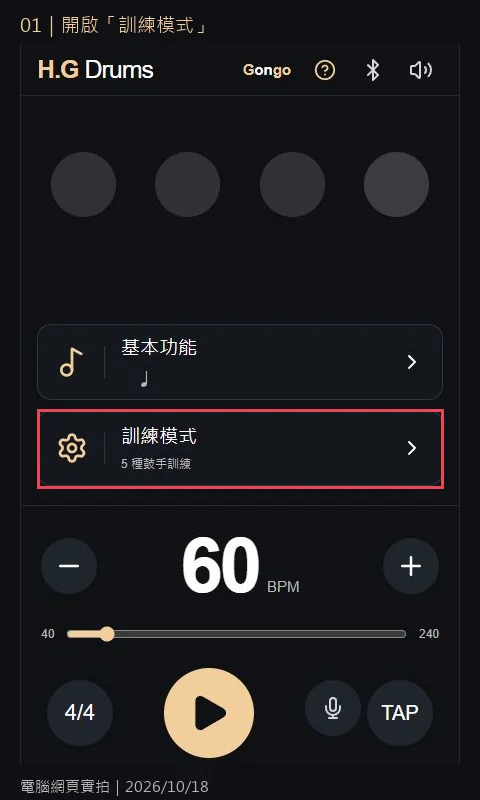
Tap the Training Mode on the home screen,
then find “Rhythm Variation Training” and tap the settings on the right side.
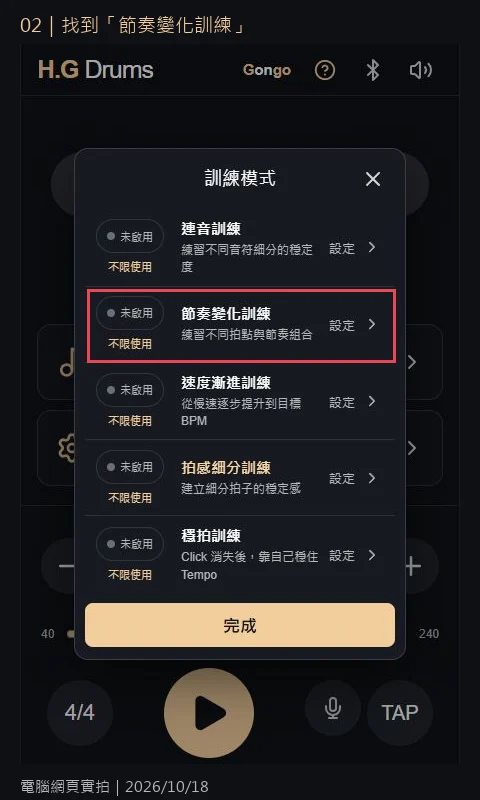
Next you’ll see “Half-Beat Sequencing.”
Here, one beat is divided into the first half and second half, labeled as downbeat and offbeat.
3. Choose eighth notes for both downbeat and offbeat
Tap the note above the downbeat and select “Eighth notes / Half-beat 1 grid.”
Reconfirm the offbeat has the same setting; after selecting the note you’ll return to the sequencing screen.
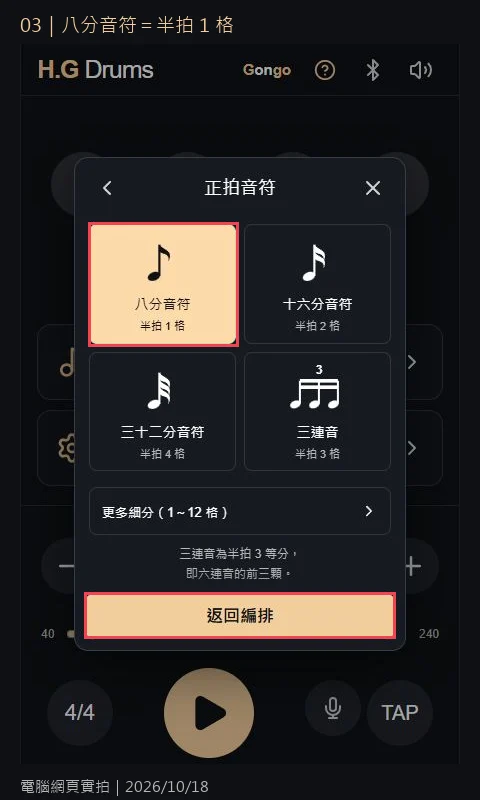
In this 4/4 practice, one beat is split into two positions: a number and an &.
For example, the first beat’s first half is “1,” and the second half is “&”; it’s not that each downbeat and offbeat occupies a full beat!
4. Turn off the downbeat, keep the offbeat lit
Tap the round light under “Downbeat” to turn it gray.
Keep the light under “Offbeat” golden.
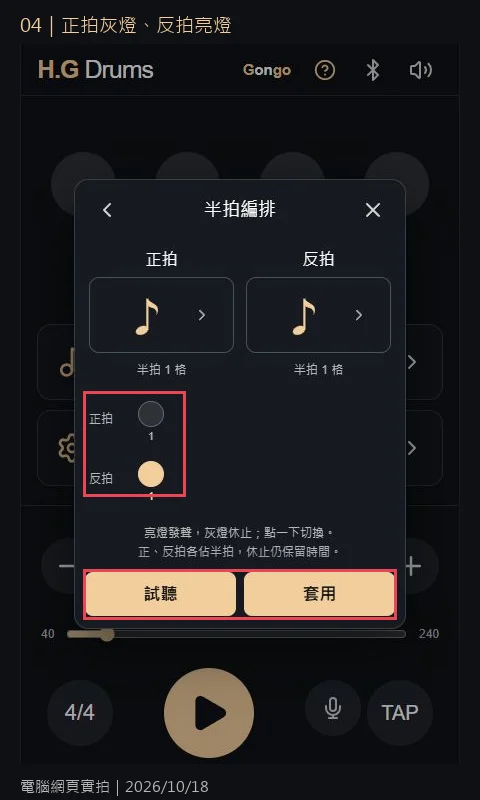
Gray light only indicates that position is silent; time is still counted.
So after rest on the downbeat, the offbeat will not be pushed forward or become the new main beat.
First press “Listen”; the tool will play the current four-beat pattern, then stop.
Listening does not save the settings; if you want to stop early, press stop again.
5. Apply, confirm enabled, then return to main screen to play
After confirming the arrangement, press “Apply,” and the screen returns to the training menu.
You should see “Rhythm Variation Training” as Enabled; then press “Done” below.
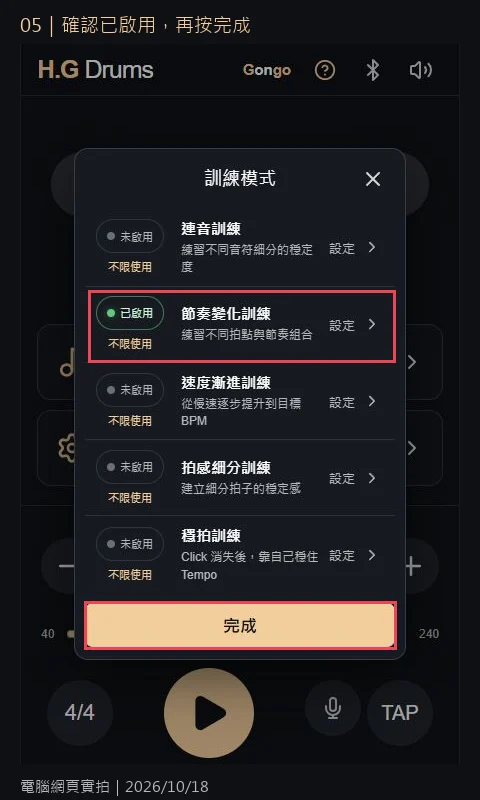
Back on the main screen, press the play button below to keep playing this arrangement.
To stop, press the same Play/Pause button again.
6. Practice example: clap the numbers, sound on the middle
Prepare your sticks, keep your mouth steady counting:
“1& 2& 3& 4&.”
Left and right hands alternate, tapping each number once:
“1” right hand, “2” left hand, “3” right hand, “4” left hand.
The metronome sound should fall on the offbeat, appearing in the middle of the two taps.
Keep at BPM 60 for one measure, then try four measures in a row.
If you hear the Click and your hands start to move on their own, stop,
return to the settings where both downbeat and offbeat light up, listen to the numbers and the and clearly, then try turning off the downbeat.
This practice emphasizes the beat positions first; don’t rush to speed up or add fills.
Let the ears hear the offbeat while the hands stay on the downbeat, and avoid both hands trying to do the same job XD
Common questions
Why can’t I hear anything at first? Is it broken?
This time the downbeat is set to rest, so the first number position originally doesn’t sound.
If there’s no sound at all, make sure the offbeat light is on and volume isn’t muted.
Why when I press Listen does it not keep playing?
Listen plays only four beats and does not save the settings.
To continue practicing, please Apply, Done, then return to the main screen to play.
The screenshot says “Unlimited usage,” why is my screen different?
Screenshots show rights for that account and don’t represent all accounts.
Check your own screen for trial or membership prompts; don’t rely on screenshots alone.
Can I use this on mobile or tablet?
You can access the same features from the web metronome; this article’s images show the desktop web version.
Mobile and tablet layouts may differ; during practice keep the page open and confirm sound is working.
👉 open the H.G Drums Metronome
👉 View Rhythm Variation training on the site
First separate the “numbers” and the “&,”
Let’s kick it with GONGO too today! 🥁